
Aloha,
Welcome to the May 2026 E-Construction Newsletter! In this edition, we’re sharing key reminders, newly released tools, and updated workflows designed to streamline your day-to-day tasks. Keep reading for the latest updates from our core platforms and upcoming training opportunities to support your work.
- Recent Trainings/Office Hours
- E-Construction Project Onboarding
- Autodesk Forma Updates
- Haulhub Updates
- HeadLight Updates
- HDOT Wiki Site Updates
1. Recent Trainings/Office Hours
- HaulHub New Features & Questions
- April Newsletter Updates and General Feedback/Questions
- May 2026 Headlight Updates
- Autodesk Forma ‘Home’ Dashboards
Find all of the latest training recordings and slide decks here:
If you are not invited to the office hours meeting invite for the above trainings, please reach out to econ@qrse.com.
Are there any specific topics you’d like to focus on more during office hours? If so, please fill out the form here!
2. E-Construction Onboarding for New Projects
For Autodesk Forma, projects should be created by the construction project manager/engineer at the beginning of the construction phase. If at the construction phase there has not been a project created yet, you can still follow the wiki post for Project Setup to create it in Autodesk Forma. For any members that need to be added/removed, have them contact the PM/PE to be added.
REMINDER: Assigning the correct roles in Autodesk Forma is an essential part of project setup. Please take a moment to confirm that members have the appropriate roles and that access permissions have been assigned correctly by project administrators.
For HeadLight, new projects should be requested through HeadLight’s project intake form here. To add/remove members to a project, send an email to support@headlight.com with your name, email address, role, and project that you want to be added to. Be sure to CC the PM/PE on the email request.
For HaulHub, new projects in E-DOT should be requested through the project creation form here. You should also remind the prime Contractor on your job that they need to create the project in their portal. In addition to that, the Contractor should have the supplier reach out to alex.richardson@haulhub.com to get onboarded to Haulhub’s supplier system (if not already onboarded). All projects must be using E-DOT to track material tickets.
Please reach out to the e-construction support email (econ@qrse.com) if live onboarding training is needed for a specific project.
3. Autodesk Forma Updates
- Updates from May 2026
- Administration
- User Administration
- Project Admin | Member In-line Editing – Project administrators can now edit supported member information directly in the Members tool. Fields such as company, role, and access level can be updated from the members list without opening each member profile. Hub administrators can also edit project access from the member details page, helping manage members and project access with fewer clicks.
- Notifications
- Notifications | Daily digest due date reminders – Daily Digest email notifications now include a summary of assigned item due dates. Project members can receive digests that highlight upcoming and overdue items for Issues, Forms, RFIs, and Meetings.
- User Administration
- Forma Build and Forma Build Essentials
- Project Management
- RFIs | Revision Numbering Improvements – When an RFI is revised and a decimal is added to the RFI number, the original whole number is now retired and will not be reused for another RFI. This helps prevent confusion and keeps the RFI log clearer.
- RFIs | Custom Fields Enhancements – RFI types now support default values for custom fields. When a member creates an RFI, the predefined value automatically appears in the custom field.
- RFIs | Assign Everyone Permission – RFI settings now include an Everyone option for permissions. Project administrators can assign a permission to everyone in the project in one step instead of adding members individually.
- Specifications | Update All Spec Sections on Mobile – Mobile members can now update all spec sections in a project at once. This helps teams access the most current specification information without updating sections one at a time.
- Specifications | Improved Submittal Register Sorting – Teams can now organize the diplayed attributes in their register while keeping existing search and filter information.
- Submittals | Calculate Dates by Schedule Work Days – In settings, project administrators can now choose to have Submittal review periods and due dates calculated using the project working days in Schedule, rather than calendar days. When this setting is enabled, Submittals uses the workday, weekend, and holiday settings from the project schedule when auto-calculating review step due dates.
- Submittals | Saved Filters – Submittals now supports saved filter views in the items list. Teams can save and reuse common filters and search criteria to quickly return to the submittals they need to review, including items tied to pending actions, reviews, or responsibilities.
- Submittals | Create Submittal Item Permission – Submittals now supports permission controls for creating submittal items. In settings, project administrators can choose to restrict item creation to only submittal managers and project administrators, helping reduce duplicate entries and keep submittal registers clean.
- Submittals | Custom Fields – Submittals now supports custom fields for project-specific information collection and cross-project analysis within the same account. Custom fields are created using the Parameters Service, which provides a central place to create and manage custom fields.
- Field Management
- Issues | Quick Create Issues Powered by Autodesk AI – Create issues faster by taking a photo and adding a short description. AI fills in key fields and processes up to five photos per issue in the background. Review, edit, or turn off AI enrichment as needed. Available in private beta for select customers; requires standard issue permissions and an internet connection. Learn more about quick issue creation on Android and iOS.
- Issues | Issues Log Inline Edit – Project teams can now edit issue details directly from the issues list, without opening the issue detail view. This helps members update issue information more efficiently while reviewing the log. Learn more.
- Issues | Photo Grid – Use Photo Grid on iOS to visually scan issues by image instead of list rows. See the first photo for each issue at a glance, open issue details, adjust grid columns, and keep using search and filters. Photos load as you open the grid, and placeholders appear if no photo is available. Learn more.
- Forms | Mobile Forms List Redesign – The mobile Forms experience now includes an updated layout that helps field teams find and act on the right forms more quickly. The forms list has more space, and customizable saved filters that let members jump to the views they use most often. When creating a new form, the app also surfaces the three most recently used templates to help members start repeat workflows faster.
- Sheets | Enhanced Sheets API Exports – The Sheets API now lets teams export up to 1,000 published sheets from Forma Build as a downloadable PDF. Exports can include standard markups, Issues, Photos, Assets, and related markup links, helping teams tailor each export to the information they need.
- Mobile App | Online enabled Meetings, RFIs, and Submittals – Project members can now receive updates in Meetings, RFIs, and Submittals without manual syncs. This helps teams stay current while working in the Forma mobile app.
- Mobile App | Sheets – Snap to Line – Project members can now snap measurements to drawing lines in Sheets on mobile. This helps teams place and align measurements more precisely on iOS and Android.
- Project Management
- Forma Data Management and Forma Data Management Essentials
- Data Management on Web
- Files | Manage AutoCAD Support Files on Web – Project administrators can manage AutoCAD support settings directly in Forma Data Management on web. They can edit and save the autocad.support.config.json file without opening AutoCAD desktop software or AutoCAD web, making project-level AutoCAD support settings easier to update.
- Data Management on Web – Forma Data Management Only
- Files | Compare Extracted Attributes – During automated drawing extraction, members can compare newly extracted drawing attributes with values from the previously extracted version. Differences in values such as sheet number, title, dates, and other extracted attributes are highlighted before saving or publishing, helping teams review revised drawings with reduced manual cross-checking.
- Reviews | Review Report Include Review Step Candidates – The review report now includes review step candidates for closed steps and closed reviews. In addition to showing members who submitted, reviewed, or approved, the report now shows who was eligible to participate in each step. This helps project teams review participation and follow up without opening the review in the product.
- Reviews | Search and Filter Files in a Review – Reviewers can now search and filter files directly from the review detail page. Search by file name or use filters such as file type, current version, review status, comments, issues, and markups to quickly refine large review packages and find the files they are responsible for reviewing.
- Reviews | Review Auto-trigger Limit Increased to 100 per Folder – Project administrators can now create and apply up to 100 review auto-triggers on a single folder. This gives teams more room to automate review routing for folders that support multiple disciplines, file types, or review requirements.
- Reviews | Numeric and Date Type Attributes Supported as Conditions in Review Auto-triggers – Project administrators can now use numeric and date-type attributes as conditions when creating review auto-triggers. This gives teams more flexibility to define when reviews should start based on file attribute information and helps automate review workflows with more precise criteria.
- Project Management on Web – Forma Data Management Only
- Specifications | Improved Submittal Register Sorting – Teams can now organize the displayed attributes in their submittal register while keeping existing search and filter information. Learn more.
- Field Management on Web
- Issues | Issues Log Inline Edit – Project teams can now edit issue details directly from the issues list, without opening the issue detail view. This helps members update issue information more efficiently while reviewing the log. Learn more.
- Forma Mobile App – Forma Data Management Only
- Specifications | Update All Spec Sections – Members can now update all spec sections in a project at once on mobile. This helps teams access the most current specification information without updating sections one at a time. Learn more.
- Mobile App | Issues Photo Grid – Use Photo Grid on iOS to visually scan issues by image instead of list rows. See the first photo for each issue at a glance, open issue details, adjust grid columns, and keep using search and filters. Photos load as you open the grid, and placeholders appear if no photo is available. Learn more.
- Mobile App | Joystick in 3D Model Viewer – Members can use on-screen joystick controls to navigate 3D models on mobile. This improves movement and positioning while reviewing models on iOS and Android.
- Mobile App | First-person Navigation – Project members can now move through 3D models using drone-style joystick controls and a minimap overlay. This supports spatial review workflows on iOS and Android.
- Mobile App | Performance Improvement – Occlusion Culling – Project members can now navigate interior 3D spaces more smoothly on mobile. Occlusion culling reduces rendering for model elements outside the current view.
- Mobile App | PlaceMe in Mobile (Revit Only) – Project members can now place themselves within a 3D model from a published Revit 2D view. This Revit-only workflow is available on iOS and Android for mobile model navigation.
- Data Management on Web
- Administration
This is just a small selection of the recent updates to ACC. For a full list of recent updates to ACC and other resources, visit the official help website.
4. Haulhub Updates
Aloha HDOT Team,
Welcome to the 2026 May edition of the Haul Hub Newsletter—your one-stop source for e-Ticketing updates, portal enhancements, and expert tips to streamline your EDOT experience!
Our mission? To keep you informed, empowered, and connected as we drive e-Ticketing adoption across the islands. This newsletter is yours, so we’d love your input—what topics or features would you like to see? Share your ideas with us!
🚀 Supplier Integration Highlights
Big mahalo to our 9 onboarded suppliers:
✔ Grace Pacific
✔ HC&D
✔ Hawaiian Cement
✔ Halawa Asphalt
✔ Hawaii Paving
✔ Island Ready Mix
✔ Kauai AC Plant
✔ Maui Asphalt
✔ Makakilo Quarry 2
📌 Coming Soon: Jas Glover, Kauai Concrete, and Yamada & Sons are next in line! If your project uses a supplier not yet integrated, let us know—it helps us prioritize.
Calling All Projects!
We have 13 projects receiving data in 2026 so far. The question is, what are we missing? Please send us a ticket scan from any of your projects that’s not receiving e-Tickets, and we can work on getting the data.
If you have any questions or need support, feel free to reach out to Alex and Chord.
📊 EDOT by the Numbers
(Jan 1, 2025 – April 30, 2026)
✅ 10,269 Total Tickets Processed
✅ 25 Projects Calibrated
✅ 219 Inspectors in HDOT Portal
✅ 11 Suppliers Actively Sending Data
Material Breakdown:
🔹 HMA: 5,779 (56.28%)
🔹 RMC: 2,902 (28.26%)
🔹 AGG: 1,588 (15.46%)
🛠️ : Let’s push things forward in 2026! One of our key goals this year is to ensure that at least 95% of e-Tickets are inspected across all projects. One of our key goals this year is to ensure that at least 95% of e-Tickets are inspected across all projects. We’ll be reaching out to project offices to see how we can help ensure this goal is met. If you’d like to set up a training to discuss, feel free to reach out to me at alex.richardson@haulhub.com to schedule a day/time. Or you can use this link to visit our online learning portal [Haul Hub University] with video tutorials on DOT e-Ticketing.
📣 Your Voice Matters
Have questions or suggestions? Want to highlight a win or challenge? We’re all ears! Drop us a line or join our next feedback session.
We can’t do this without you!
Special thanks to participating projects, Island Ready Mix, and Paul’s Electrical team for the continued communication, collaboration, and problem-solving to ensure a large number of e-Tickets were updated to reflect the correct project information. Your efforts are critical to ensuring only accurate tickets are shared with projects in EDOT, and we truly appreciate the partnership.
If others are seeing similar issues on their projects, please reach out so we can partner together to get them resolved.
Team, the progress we’ve made has been incredible. We’ve continued to climb toward our target of 95% of tickets inspected (Marked Delivered or Rejected), and as of April 30th, we are now at 90.85% inspected across all projects!
That milestone reflects the dedication and follow-through from everyone involved.
Thank you for continuing to prioritize these updates and helping ensure the field activity is accurately reflected in the system.We’re close to the finish line now — let’s keep the momentum going and push through that 95% mark together!
Mahalo for being part of the e-Ticketing ‘ohana.
5. HeadLight Updates
- New Minimal Sync Mode – To better support customers with very large project memberships (1,000+ projects), Fieldbook iOS now offers Minimal Sync mode. This mode dramatically improves login speed, reduces device load, and helps prevent crashes caused by heavy data downloads.
When Minimal Sync mode is enabled:- Historical observations or documents are not downloaded during setup
- The app avoids crashes caused by excessive data from large project memberships
- Users may experience a faster login
- New observations/documents created on the device sync to Web
- Edits made in the web app to your own items sync down
- Items created by other users do not sync down
- Device data remains smaller, more stable, and easier to manage
Per User- Log into profile.headlight.com
- Scroll down to Sync Preferences
- Toggle Minimal Sync ON (same toggle used for SmartForms)
- Reinstall or log back into Fieldbook iOS to apply the setting
- Start Working in Your Desired Project Faster
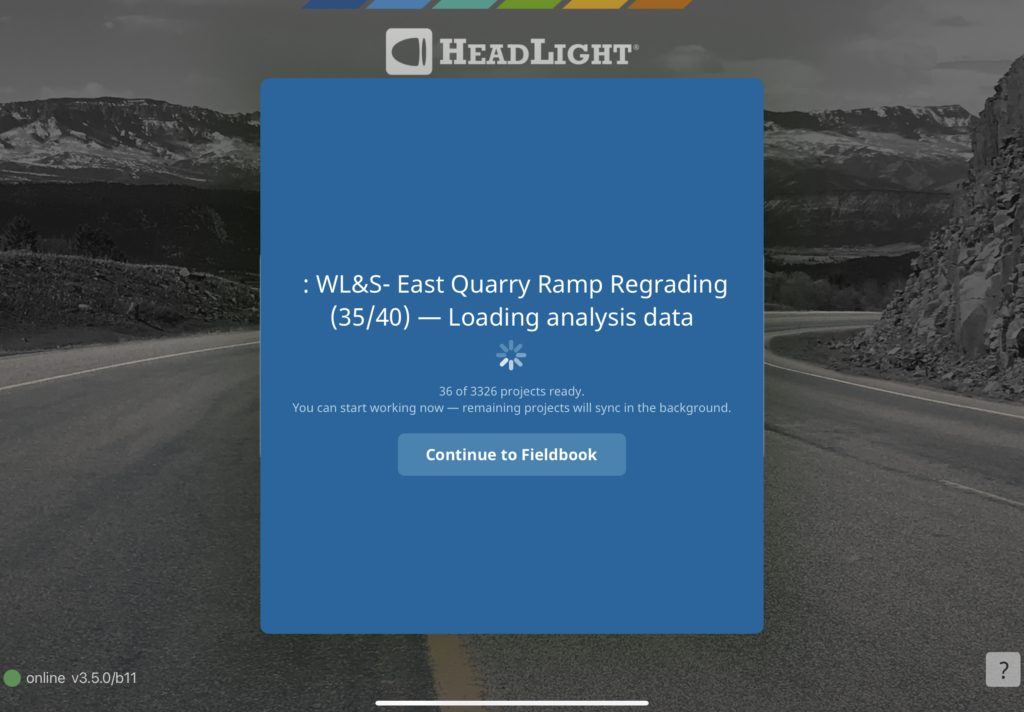
A new sync progress experience allows users to enter Fieldbook before all projects finish syncing.
After login:- Users first see the standard blue loading screen
- Once the project list loads, a new sync progress screen appears
- Users can now choose to immediately enter the app while their remaining projects continue syncing
- The app opens to the user’s last accessed project, or
- The first available project if no recent project exists
- Improved Observation GPS Accuracy in Forms – Geolocation in Fieldbook iOS forms is now more accurate.
Each new observation captured records fresh GPS coordinates, even if the device changes location between captures. This ensures observations consistently reflect the correct location. - iOS 26 Bug Fixes – Fieldbook iOS v3.5.0 includes critical fixes for multiple iOS 26-specific issues that were blocking users from editing Spreadsheet observations and causing UI overlap and keyboard failures.
These fixes ensure full functionality on iPadOS 26.0, 26.0.1, and 26.1. - Project Files Improvements (Create, Edit, & Move)
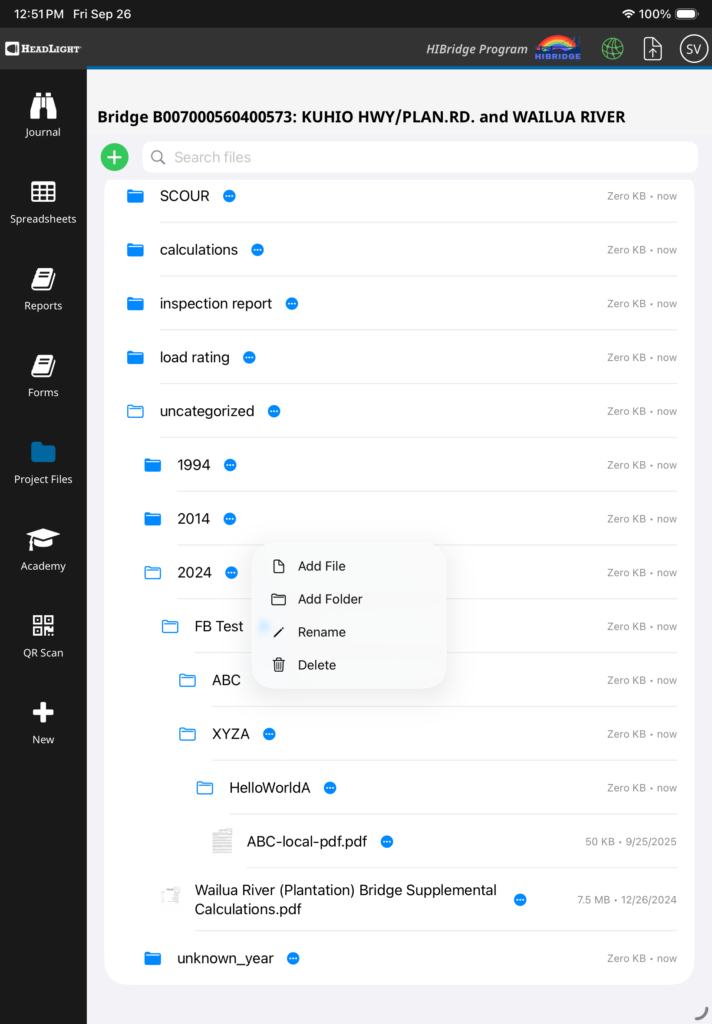
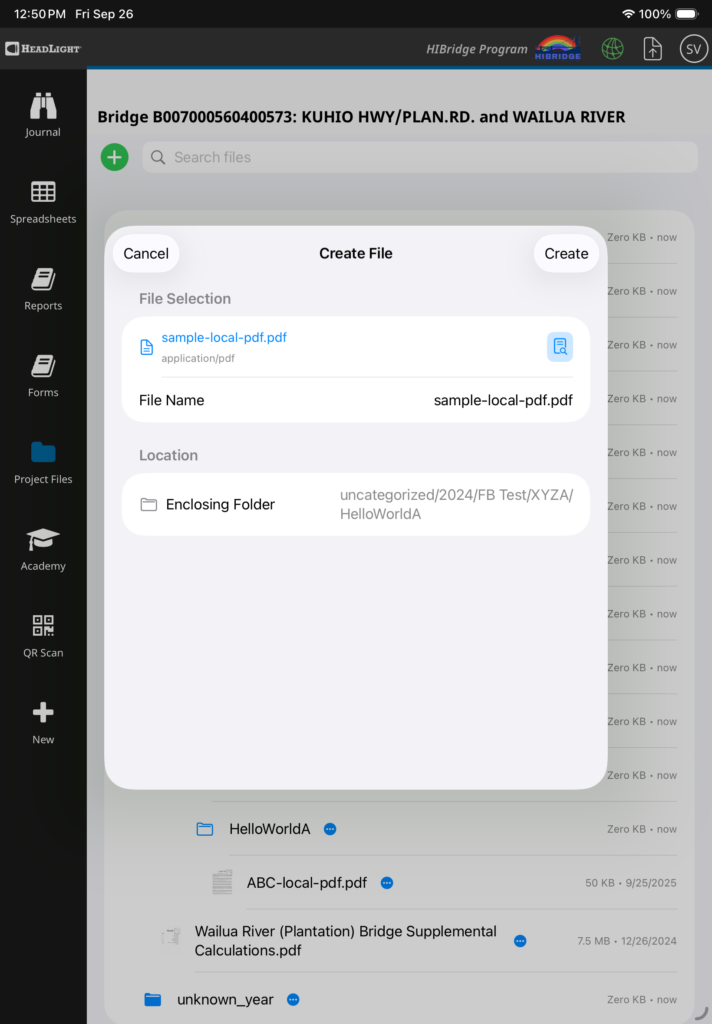
The Fieldbook iOS app now includes a redesigned interface for managing Project Files on iPads. This update introduces Create, Read, and Update functionality for project files and folders, making it easier to organize documents, images, and other media. The create, edit, and move functions are available online only, while viewing files and folders remains available offline.
Key Improvements- Create project files from existing observations (images, videos, audio, file uploads)
- Rename files and folders with built-in validation to prevent duplicates or invalid names
- Edit file details, including File Type and name, with support for both standard and custom File Type values
- Move files and folders between directories with real-time refresh
- Improved selector experience for large datasets, gradual media downloading, and observation search
- New folder management functionality ,including create, rename, and move
6. HDOT Wiki Updates
As part of our mission to make the HDOT Wiki site the best possible resource for all of us, we have worked to update it with all the latest information and resources. New pages have been added and old pages are being kept up-to-date.
To access these resources, you must have an account with the appropriate role on the Wiki. As a security measure, the registration page requires a password to access. To request the password, please email econ@qrse.com with a message containing your name, company, and role from the following:
- Project Engineer
- Inspector
- Surveyor
- Planning
- Design
- Contractor
- O&M
- Resident Engineer / Construction Manager
If necessary, you can pick multiple roles that are relevant to your work. After we confirm your request, we will send you the password to use here: https://hdot.wiki/register/
After entering the password, follow the prompts and enter your information. We will then approve your account and you will have access.
For more information on navigating the Wiki and finding the resources you need, please refer to this video: How to Navigate Through the HDOT Wiki
Thank you for reading, and see you in the next newsletter!